
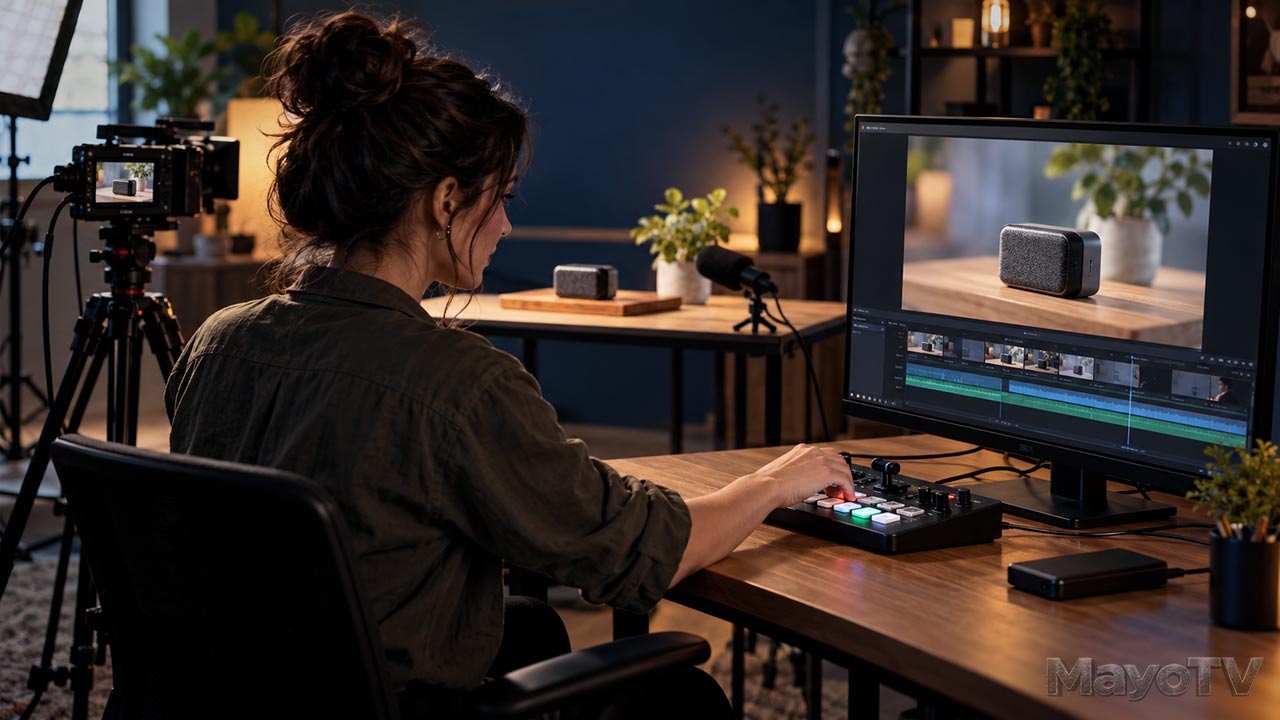
Connected production tools help independent producers capture, manage, and deliver original content.
Media Technology: The Tools Behind Independent Content
Every finished video depends on technology working behind the scenes. Cameras capture the pictures. Microphones record the sound. Software helps shape the story. Storage protects the work, and connected systems help move it from the production space to the audience.
Media technology brings these tools together. It includes the equipment, software, formats, and technical workflows used to create, manage, and deliver video, audio, graphics, and other media.
For independent producers, the challenge is deciding which tools solve a real problem. A small studio needs equipment that works together, supports the projects being made, and remains manageable for the people operating it. An impressive feature list means little if the setup makes each production harder to complete.
At MayoTV, media technology connects our creative projects with the practical systems that make them possible. This pillar explores how those systems work, how to choose them, and how to build a production environment you can understand and improve.
Explore This Guide
- What media technology includes
- Capturing pictures and sound
- Computers and production software
- Storage and media management
- Connecting your studio
- Choosing useful upgrades
- Frequently asked questions
What Media Technology Includes
A useful way to understand media technology is to follow the path of a project.
Capture tools record the source material: cameras, microphones, recorders, lighting controls, and devices that bring video into a computer.
Production tools help manage a recording session or live program. These may include video switchers, audio mixers, monitoring screens, and recording or streaming software.
Post-production tools turn the recordings into finished work. Editing, audio, color, graphics, and visual effects software all belong here.
Storage and delivery systems organize the files, preserve copies, and prepare the content for its destination.
These tools form a connected workflow. Before buying a component, consider how it receives information, what it produces, and where that output needs to go next.
Capturing Pictures and Sound
Start with what your production needs to record. A seated presenter, a moving subject, and a close-up demonstration place different demands on equipment.
For a camera, consider framing, focus, recording duration, available connections, and the files it creates. For a microphone, consider the speaker’s position, movement, room noise, and how the sound will be recorded.
Connections matter as much as individual specifications. If you want to use a camera as a live source, confirm that its output works with the capture device or switcher. If you plan to connect a microphone directly to the camera, check that the microphone and input are compatible.
Test the complete signal path before depending on it. Record a short sample, listen to the audio, and bring the file into your editing software. This practical check can reveal a problem that separate equipment tests miss.
For the creative decisions behind framing, lighting, and recording, explore Video Production.
Computers and Production Software
A production computer needs to handle the material and effects your projects use. Performance depends on several parts working together: the processor, graphics hardware, memory, storage, and the software’s handling of your media.
Resolution is only part of the picture. The way a file is compressed can affect how much work the computer must do during playback. A codec is the method used to encode and decode that media. Two videos with the same frame size can behave very differently in an editing application.
When playback becomes difficult, lower-resolution working copies may help. These are commonly called proxies. They let you edit with lighter files while keeping the original recordings available for finishing. A proxy workflow still needs correct file links and a final check that the intended source media is used for export.
DaVinci Resolve combines editing, color correction, visual effects, graphics, and audio post-production. OBS Studio provides tools for video recording and live streaming. Their roles differ, so choose software around the job it needs to perform rather than expecting one application to handle every task.
Learn the core tools before adding more. A stable workflow you understand is easier to troubleshoot than a collection of applications with overlapping functions.
Storage and Media Management
Video files accumulate quickly. Source recordings, project files, graphics, sound, and finished exports all need a place in your system.
Organize each project with a consistent folder structure. Separate camera footage, audio, assets, project files, and exports so you can find what you need without guessing. Keep filenames meaningful, and avoid moving linked media casually after editing begins.
Decide which storage holds active projects, which holds completed work, and where additional copies will live. A shared network drive can make files accessible to several computers, but its performance depends on the drives, network connections, and workload.
Treat backup as a recovery plan. Consider how you would restore a project if a drive failed, a folder was deleted, or a computer became unavailable. A copy stored separately from the working system helps protect against problems that affect the whole setup.
Keep the records that belong with the media, too: source information, asset licenses, release documents, and notes about how the finished work was delivered.
Connecting Your Studio
A connected studio might bring cameras, microphones, computers, and a switcher into one recording or live-production system. The goal is a reliable path from each source to the final recording or stream.
Draw that path before adding complexity. Identify where the picture enters, where the sound enters, where they meet, and where you can monitor the result.
For live work, check audio and video synchronization. Confirm that the recording captures the intended sources and that the stream reaches its destination. Watch and listen to the actual output rather than assuming the preview tells the whole story.
Internet upload capacity matters when sending a live program, but reliability matters too. Test your normal connection under realistic conditions, including other activity on the network. Prepare a local recording when preserving the program is important.
Visit Independent Broadcasting to explore how these systems support publishing and reaching viewers.
Choosing Useful Technology Upgrades
Begin with the limitation you can identify. Are recordings difficult to hear? Does editing stop whenever you add an effect? Are transfers delaying the next stage? Is the setup too complicated to operate alone?
Then compare changes that could address that problem. Sometimes the answer is equipment. Sometimes it is a setting, a simpler workflow, or better organization.
Before committing to an upgrade, ask:
- Will it work with the equipment and software I already use?
- What additional cables, adapters, storage, or learning will it require?
- Can I test it with the type of material I produce?
- Does it improve a recurring task enough to justify the cost?
- How will I recover if this component becomes unavailable?
Keep notes on settings, connections, and successful tests. That documentation helps you repeat a setup and diagnose problems later.
For the business decisions around production spending, explore Creator Business.
Frequently Asked Questions
Is media technology only about equipment?
No. It also includes software, file formats, connections, storage, and the workflows that allow the equipment to support a finished project.
Do I need a powerful computer to start?
Your computer needs to support the projects you plan to make. Test a representative recording and a short edit before deciding whether an upgrade is necessary.
What should I upgrade first?
Address the limitation that most consistently interferes with your work. Identify the cause before buying a replacement, then test whether the change solves the problem.
Build a System That Supports Your Ideas
Choose one project and follow its path from capture to delivery. Note the tools involved, the connections between them, and the points where work slows down. That gives you a practical starting point for building a studio that helps your ideas reach the screen.
Explore how satellite connectivity could expand the content production industry by creating new possibilities for communication and production beyond the traditional studio.
Sources
Media Technology Insights and Related Articles

Connect Your Home Studio Without Creating a Troubleshooting Nightmare
Connect Your Home Studio Without Creating a Troubleshooting Nightmare Your camera, microphone, computer, and recording software each work. But when you connect everything, the picture freezes, the sound doubles, or the application selects a device you did not intend to use. A home studio becomes easier to manage when its [...]
Protect Your Footage: Build a Storage and Recovery Plan
Protect Your Footage: Build a Storage and Recovery Plan A recording session ends, the files appear on your computer, and you clear the camera card for the next shoot. Then a drive fails, a folder disappears, or the editing project opens with missing media. The question is no longer where [...]
Slow Editing Playback? Simple Proxy Workflow
Slow Editing Playback? Build a Simple Proxy Workflow You press play in the editor, but the picture stutters while the sound continues. Scrubbing through footage feels sluggish, and every decision takes longer than it should. Before replacing the computer, check whether the source footage is difficult for it to play. [...]
Camera to Computer: Video Capture Path
From Camera to Computer: Understand Your Video Capture Path You connect a camera to your computer, open the recording software, and expect a picture. Instead, you get a black screen, the wrong camera, or video without sound. The connection may look simple, but several parts have to work together. The [...]

Satellite Connectivity Could Expand the Content Production Industry
AT&T, Verizon, and T-Mobile have formally announced a joint venture designed to advance direct-to-device satellite connectivity. While the immediate focus is expanding communications coverage, the longer-term implications for content production deserve attention. Connectivity has always influenced where and how creators can operate. For independent producers, documentary filmmakers, journalists, and mobile [...]