


Protect Your Footage: Build a Storage and Recovery Plan
A recording session ends, the files appear on your computer, and you clear the camera card for the next shoot. Then a drive fails, a folder disappears, or the editing project opens with missing media.
The question is no longer where to store your footage. It is whether you can recover the work.
A storage and recovery plan connects those two decisions. It identifies where projects live, which copies protect them, and how you would restore the material after a problem. For an independent producer, the plan can be straightforward, provided you test it rather than assuming a second drive makes everything safe.
Give Each Storage Location a Job
Start by separating three responsibilities.
Working storage holds the footage and assets you actively edit. It needs enough capacity and reliable performance for the project.
Backup storage holds additional recoverable copies. Its purpose is to protect against the problems that could affect your working files.
Archive storage holds completed projects and material you intend to retain. An archive still needs protection; moving a project off the working drive does not create a backup.
One device may support several tasks, but write down which copy is which. If a project exists in only one place, its importance does not change the fact that you have a single copy.
Protect the First Copy from the Camera
Create a clearly named project folder before transferring the recordings. Preserve the camera’s folder structure when the recording format depends on it.
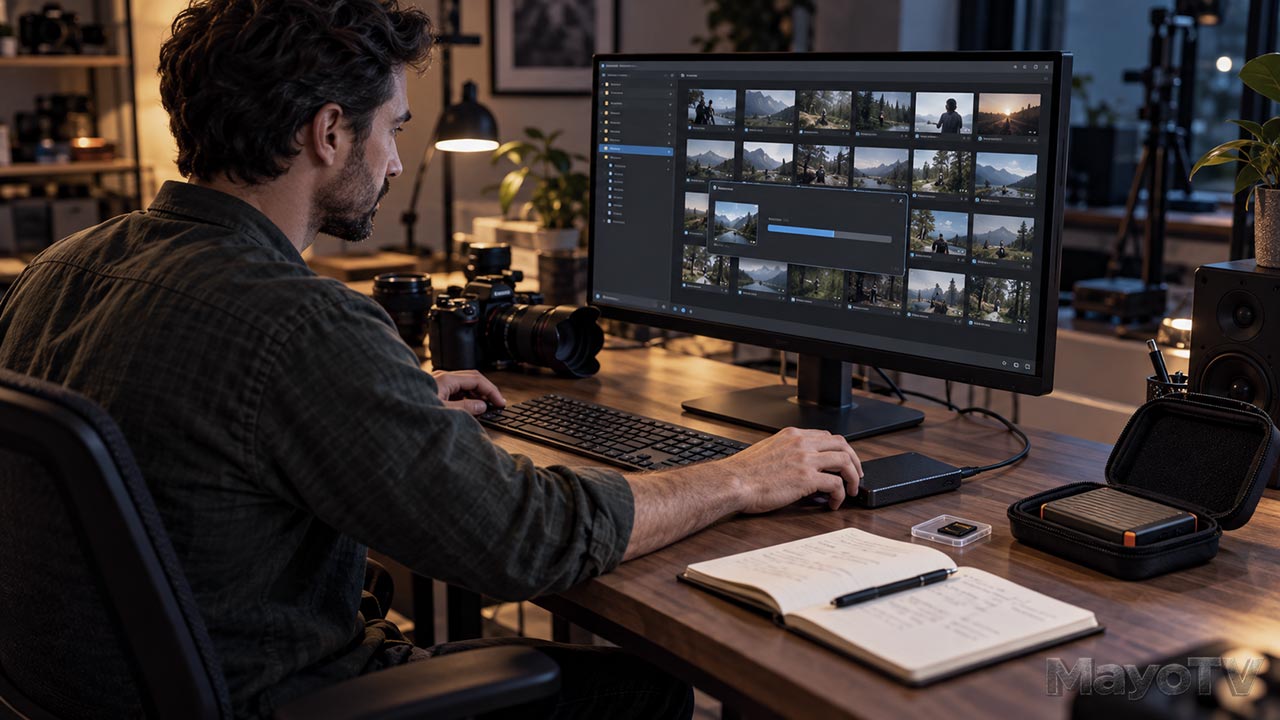
Copy the material to working storage and make an additional copy on separate storage. Check that the transfer completed and that representative clips open with usable picture and sound.
Where suitable tools are available, checksum verification compares file data to help confirm that copies match. Playback remains useful for checking the recorded content; matching copies can both contain a problem that occurred during recording.
Keep the camera card unchanged until your intended copies have been verified. Treat formatting as a deliberate decision after those checks, rather than a routine action immediately after copying.
Back Up the Whole Project
Footage alone may not be enough to reconstruct the edit. Protect the project file or project-library backup, audio recordings, graphics, still images, captions, and other required assets.
Use your editing application’s supported backup or export method. Some applications keep projects in a library or database rather than a simple file beside the video clips.
Record any dependencies that may be difficult to replace, such as particular fonts, plug-ins, or licensed assets. Keep relevant permissions and license records with the project documentation.
Decide which files can be regenerated. Proxies and render caches may be replaceable; original recordings and editing decisions usually deserve higher priority when time or storage is limited.
Understand What Mirroring Does
A mirrored drive arrangement maintains matching data across drives and can provide redundancy if a drive fails. It does not automatically preserve a recoverable earlier version when a file is deleted or overwritten.
A NAS, or network-attached storage device, can provide convenient shared storage. Its presence on the network does not make every file on it a backup. The protection depends on the actual copies, version history, access controls, and recovery process.
Similarly, a synchronized cloud folder may reproduce a deletion across devices. Check whether the service provides version history, deleted-file recovery, and a retention period suitable for your needs.
Synology’s guidance notes that even local multi-version protection does not eliminate the possibility of data loss from storage failure. Plan beyond the primary storage system.
Keep a Copy Beyond the Same Problem
Two drives beside the same computer can both be affected by theft, fire, or a damaging incident. Consider keeping another protected copy elsewhere, such as an off-site drive or a suitable cloud-backup destination.
Also consider access. A backup continuously connected to the working computer may be reachable by malware. CISA recommends offline backups and regular recovery testing because ransomware can target accessible copies.
For a removable backup drive, safely disconnect it when the backup is complete and store it appropriately. Other systems may use protected version history or immutable storage, but these features need correct configuration.
Choose a backup schedule around how much work you can afford to repeat. Check whether scheduled jobs actually complete, rather than relying only on their configuration.
Rehearse a Recovery
Choose a small completed project and restore it to a separate test location. Avoid overwriting your active work during the exercise.
Open the restored project, relink its media if necessary, and review a section of the timeline. Check sound, graphics, and other dependencies. Export a short sample to confirm that the restored material can produce usable output.
Record the steps, any missing files, and how long recovery took. Keep account-access and encryption-recovery information protected but available when needed.
Repeat the test after important changes to your backup system or production software. A successful copy operation is useful evidence; a successful restoration answers the more important question.
Your Storage and Recovery Checklist
Confirm that:
- Working, backup, and archive locations are identified.
- Camera recordings have verified additional copies.
- Project backups include essential assets and editing decisions.
- Backup history and retention meet your needs.
- At least one copy is protected from problems affecting the main system.
- Recovery has been tested without replacing active work.
Explore Media Technology: The Tools Behind Independent Content for the wider production system. Build your plan around getting the work back, and storage becomes a practical part of keeping your projects alive.









Leave A Comment